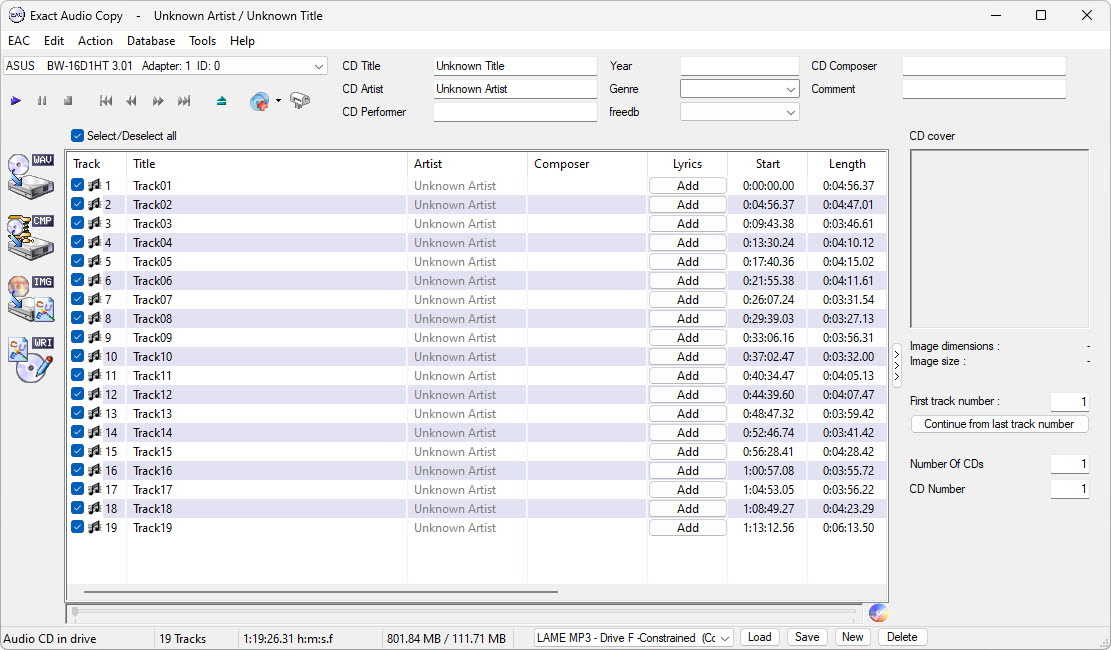
CD ripping with LAME
Rip CDs to MP3 with Exact Audio Copy and LAME
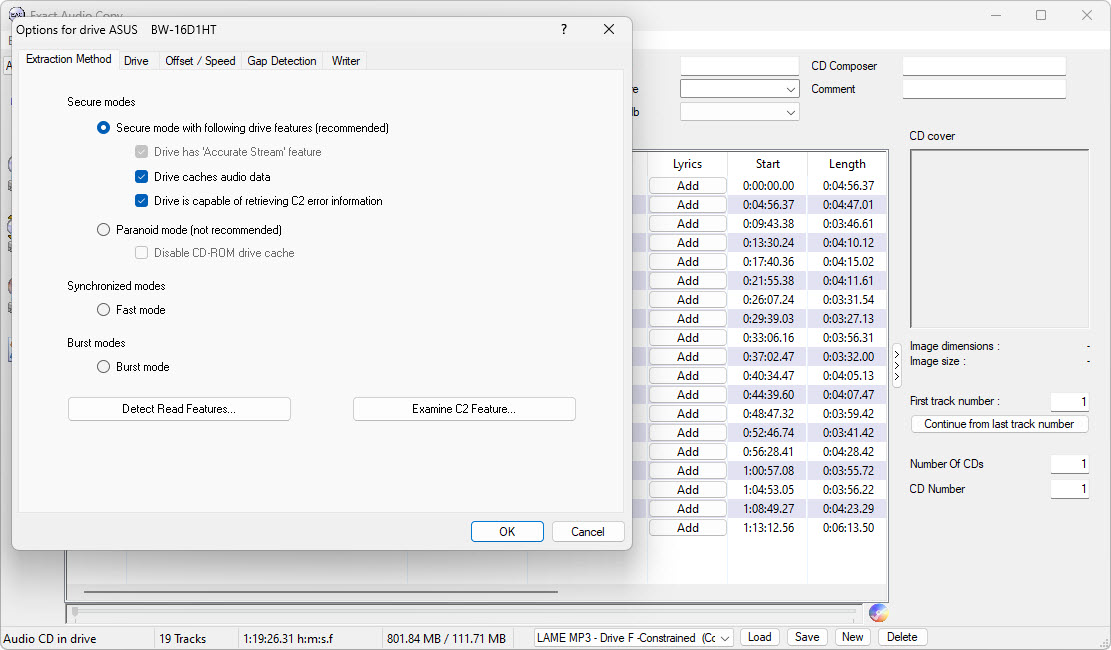
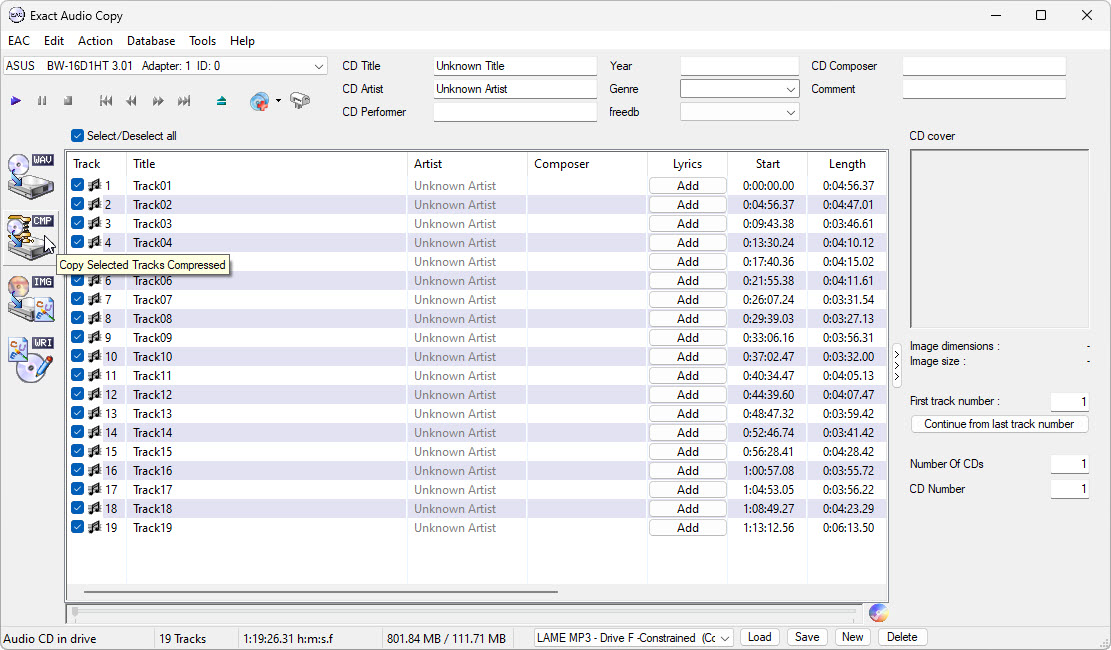
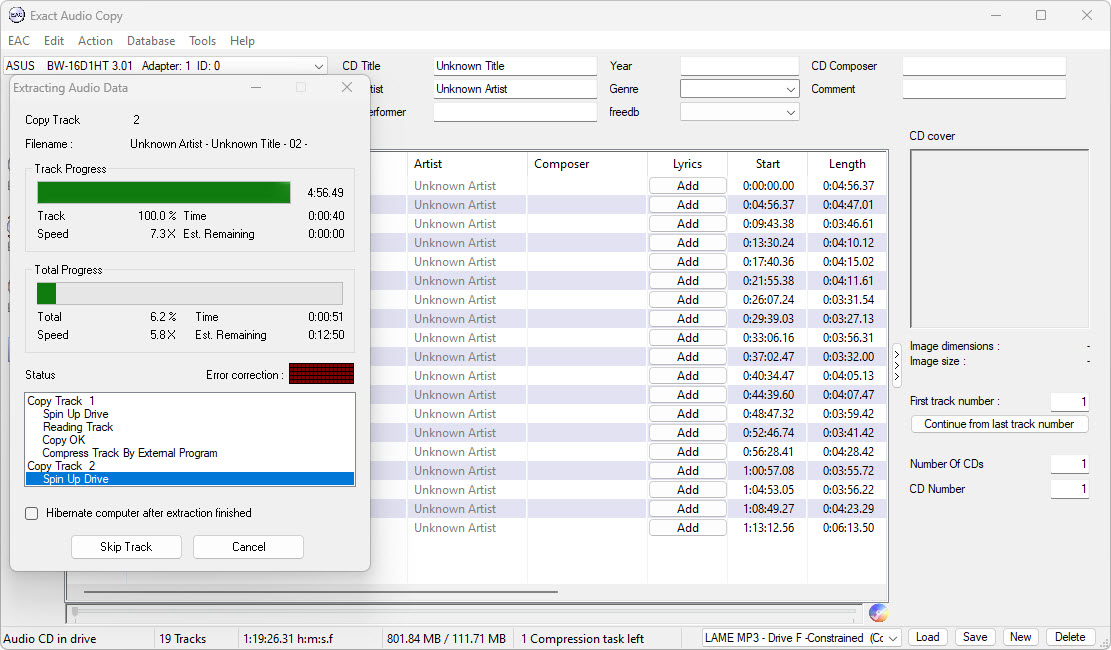
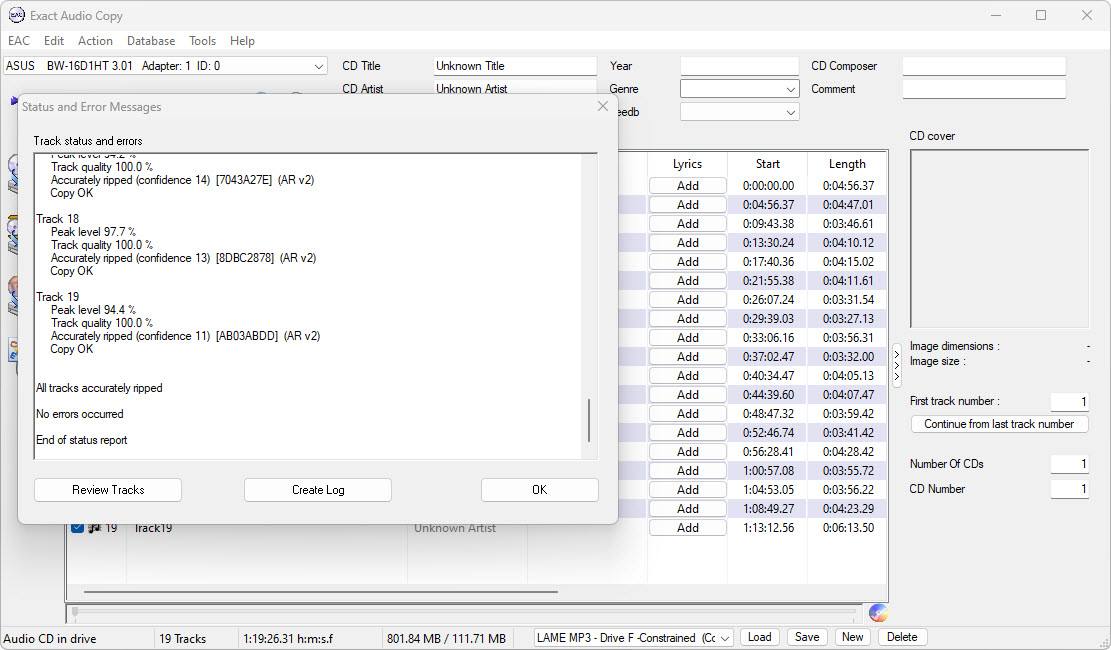
This quick guide shows how to configure Exact Audio Copy to call a LAME command-line encoder. It is intended for users who want secure CD extraction plus MP3 output using normal VBR, strict cVBR, or cVBRb options.
The short version
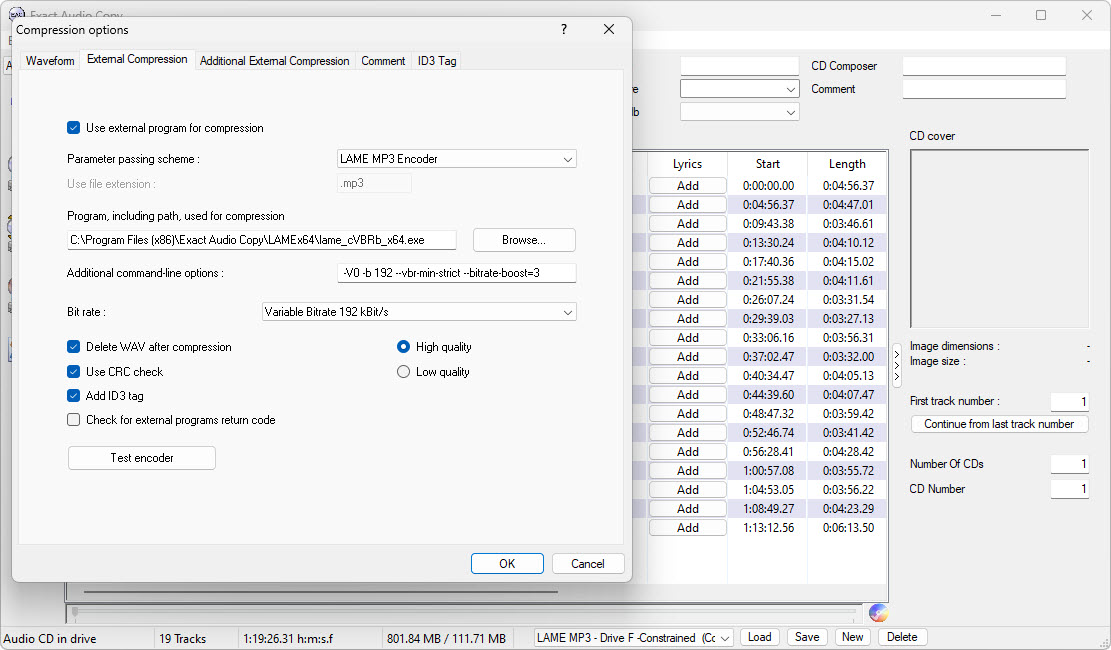
In EAC Compression Options: enable external compression, choose a LAME executable, set the extension to .mp3, then enter a command line such as -V2. EAC passes the source WAV and destination MP3 automatically when using the LAME MP3 Encoder parameter scheme.
For the cVBR/cVBRb builds from this site, you can also use --vbr-min-strict and --bitrate-boost commands shown below.
Using the specialist CUDA build with EAC
The CUDA package can be selected as EAC's external lame.exe in the same way as the standard build. It accepts common EAC/LAME switches including -v, -h and -p, plus cVBRb options such as --vbr-min-strict and --bitrate-boost=2.
Use it only on a system with a supported NVIDIA GPU and driver. Choose a standard CPU build when portability across different computers matters.
Recommended EAC external compression settings
Use external programEnabled
Parameter schemeLAME MP3 Encoder
File extension.mp3
Program pathBrowse to your LAME EXE, for example lame.exe
Command fieldUse one of the option strings below
With the LAME MP3 Encoder parameter scheme, the examples below should contain only the LAME options. EAC supplies the temporary WAV source and final MP3 destination itself. If you switch to a different parameter scheme such as a user-defined encoder, your EAC version may require placeholders.
LAME command lines for EAC
Paste one option string into EAC's additional command-line options field. Do not add source or destination placeholders when using the LAME MP3 Encoder parameter scheme; EAC supplies those itself.
Which command should I choose?
Most users
Use -V2. It is a strong general-purpose MP3 setting and keeps file sizes reasonable.
Highest normal VBR
Use -V0 if you prefer a larger, more conservative normal VBR encode.
Strict cVBR encoding
Use -V0 -b 192 --vbr-min-strict when you want to enforce the requested minimum bitrate floor.
cVBRb encoding
Use a bitrate-boost level for a more conservative allocation that shifts more frames toward higher bitrates.
Why does LAME not show up in EAC external compression?
EAC does not normally discover LAME automatically. Download and unzip a Windows build first, then use the Browse button in Compression Options to select the extracted lame.exe file. Do not select the ZIP archive or libmp3lame.dll.
Choose the LAME MP3 Encoder parameter scheme, set the file extension to .mp3, and enter the required command-line options. Moving or deleting the extracted encoder folder later will break the saved path.
Troubleshooting EAC and lame.exe
EAC does not create an MP3
Check the encoder path, make sure the file extension is .mp3, and confirm that the parameter scheme is set to LAME MP3 Encoder and that the command field contains only LAME options such as -V2.
The encoder window flashes and disappears
That usually means LAME was called but returned an error. Run the same command from Command Prompt with a WAV file to confirm the EXE and options work.
Should I keep a lossless rip?
If storage allows, keep a lossless archive such as WAV or FLAC and create MP3 copies from it. MP3 is lossy, so repeated re-encoding is not recommended.